Alerts and Market Pulse let the terminal watch the screen for you
Price alerts from the chart, strategy alerts, delivery in-app, by push, Telegram or WhatsApp, the notification preferences that control them, and what the Market Pulse board shows about breadth and open-interest build-ups.
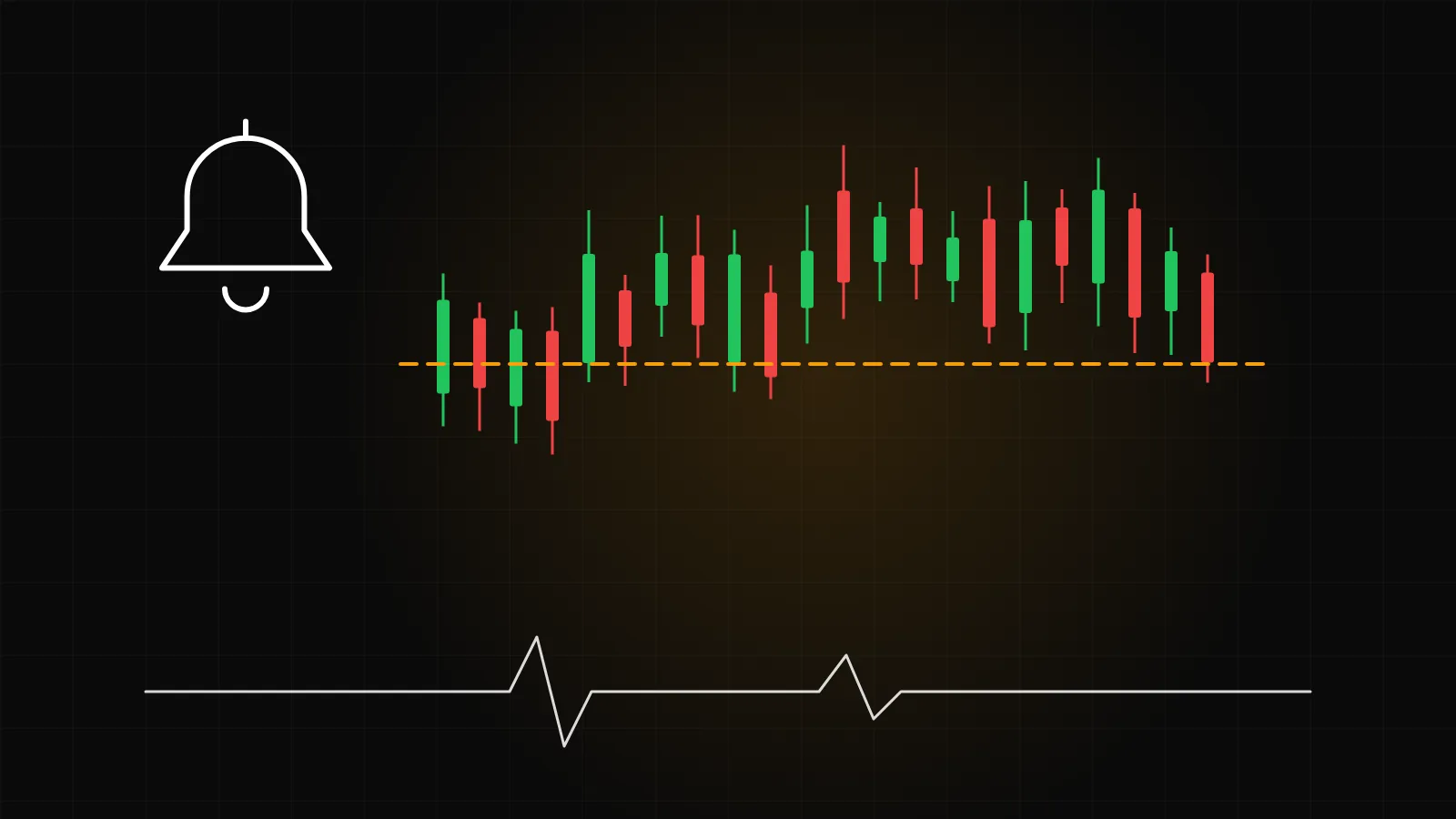
A chart you have to stare at is a chart that controls your day. Alerts turn that round: you decide the level or the condition, and the terminal tells you when it happens, on the channel you prefer. This post covers price alerts, strategy alerts, how they are delivered, the preferences that shape them, and the Market Pulse board that gives you a reading of the whole market at once.
Price alerts from the chart
A price alert is created from three places: the alarm icon in the top bar, a right-click on the chart, or a right-click on a watchlist row. The dialog takes the symbol from the current chart and asks for:
a Condition: Crosses, Crosses above, Crosses below or a percentage move;
the Price;
an optional Name and Note, which arrive with the notification so you remember why you set it;
Repeat, which fires the alert every time the condition is met instead of once;
Sound (web) and an Expires time;
My notification settings, ticked by default; untick it to pick channels for this one alert only.
The alerts pane has Active, Triggered and All tabs. An alert that fires moves to Triggered, from where you can re-arm it. The counter at the top shows how many active alerts you are using against your plan's allowance; the free Basic plan includes a small number and paid plans raise it.
One browser detail: the web sound plays in one tab only and needs a click on the page first, which is how browsers work rather than a setting on our side.
Strategy alerts
A strategy built in the no-code builder does not have to place orders. With Place order switched off in the Execution step, the strategy runs as signals only, and each signal is delivered as a strategy alert. This is a useful middle ground: the same rules, timeframes and entry windows as an automated strategy, with you deciding whether to act. Strategy alerts can be sent to Telegram alongside the in-app and push channels.
Automation notifications also cover the cases where a running strategy needs attention, has been paused or has stopped; those are always on, because missing them is worse than one extra message.
Where alerts are delivered
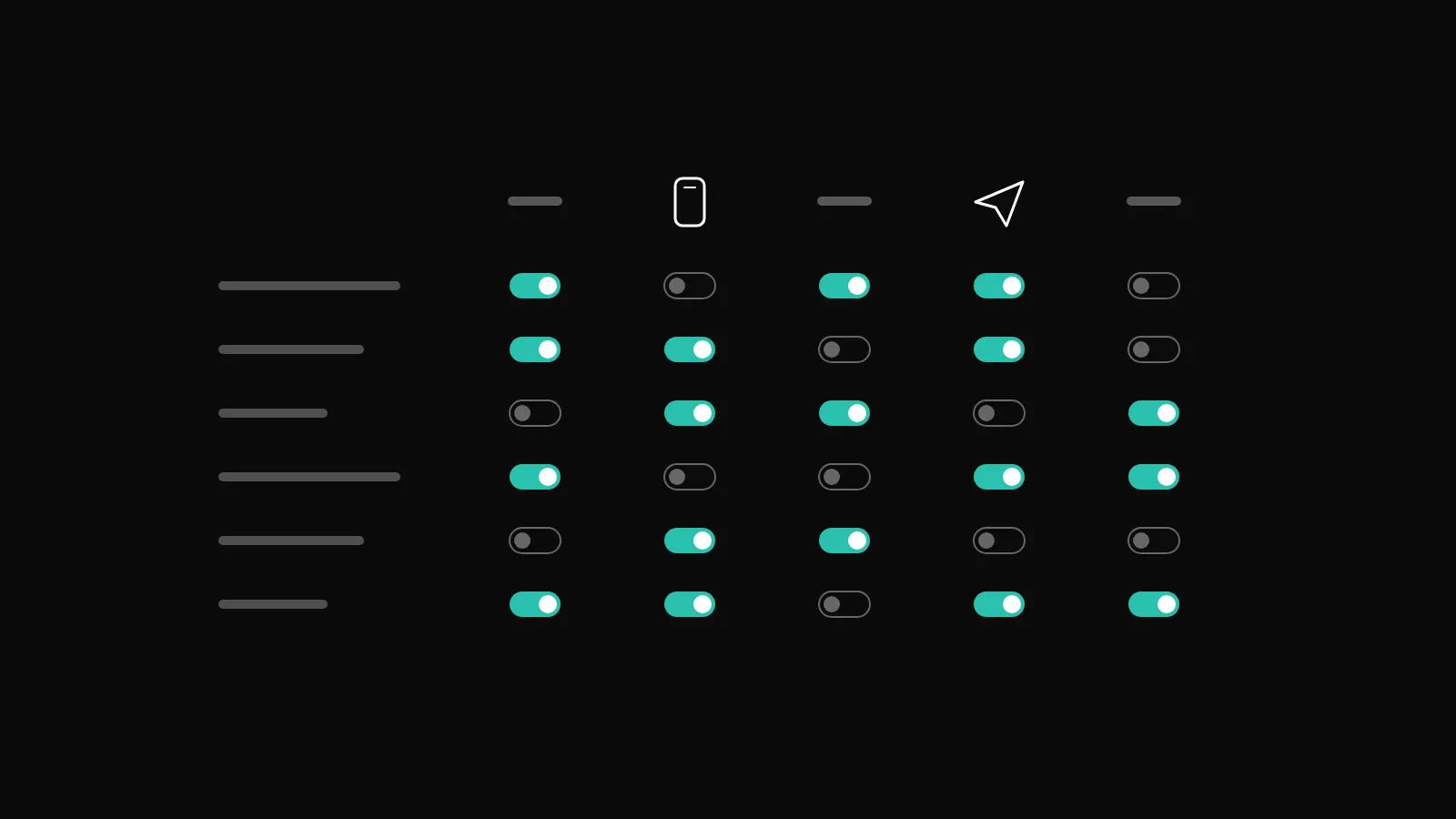
Every alert row in your preferences has a toggle per channel:
In-app, in the notification bell in the top bar.
Email.
Mobile push, through the DalRoti app, after you have signed in to the app once.
Telegram, once you have linked the DalRoti bot from Notification settings. The Telegram column then becomes available for price alerts, strategy alerts, mentor live streams and scheduled sessions.
WhatsApp, offered as an add-on.
The notification bell keeps every message with a time stamp, filter chips by type, and Mark all read. Clicking an item opens the related page, so a strategy alert leads to its Monitor page and a broker message leads to the Brokers row.
Preferences worth setting on day one
Account → Notifications is a matrix: one row per event, one column per channel. The rows are grouped into Account, Security, Portfolio, Orders, Brokers, Dedicated IP, Markets and Automation. A few are worth a minute each:
| Row | Why it is useful |
|---|---|
| Morning login reminder | Arrives at 08:30 IST on trading days for Indian brokers that need a daily login |
| Broker disconnected | Tells you during the day if a session drops |
| Order filled and Order rejected | Fills are batched in bursts; rejections carry the broker's reason |
| Daily P&L summary | Sent at a time you choose between 15:30 and 22:30 IST on NSE trading days |
| Price alerts and Mentor posts | The Markets group, where most people set push and Telegram |
Security alerts and sign-in codes are always on and cannot be turned off. The same page sets the notification sound, with a volume slider and a Test sound button, and a switch to enable desktop notifications.
What Market Pulse shows
Market Pulse is the pulse icon in the top bar. It is a live board that summarises a group of symbols instead of one chart at a time.
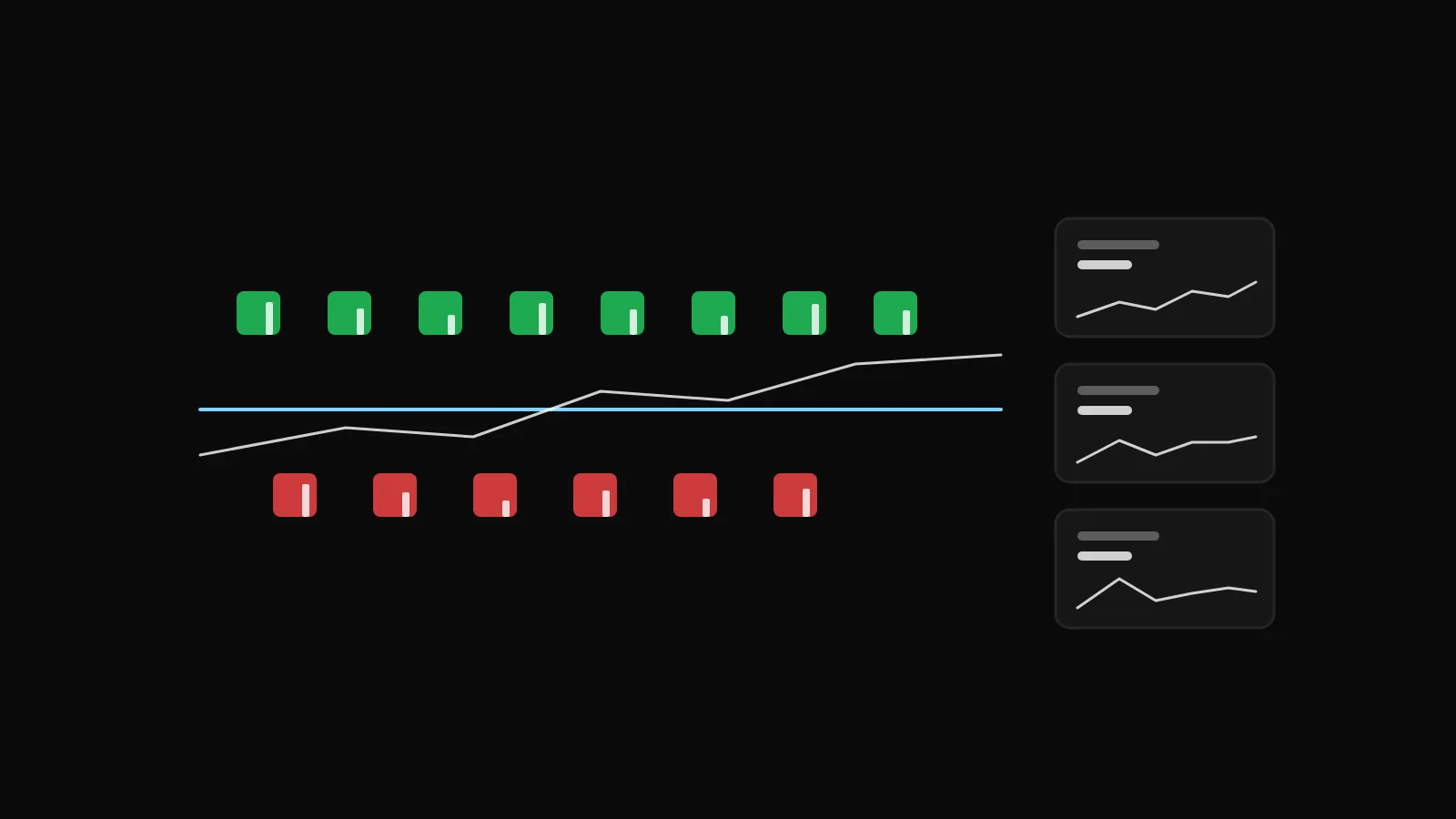
Pick a group, for example the constituents of an index or a set of leading crypto pairs, choose a timeframe from one minute to weekly, and optionally switch on Futures / Perp OI to classify symbols by open interest. The board then has three parts:
Breadth, on the left: a line showing the share of symbols in the group that are bullish over the session, with the leading and lagging sectors and a score per sector.
Tiles, in the centre: every symbol sorted bullish above and bearish below the breadth line, each with its change and a volume bar. Selecting a tile expands it to show volume against normal and an open-interest label: long build-up, short build-up, long unwinding or short covering.
Cards, on the right: for the strongest bullish and bearish names, a zone, the nearest support and resistance levels, a risk percentage, open-interest change and an efficiency reading, with a sparkline. Hovering shows the card; clicking opens the chart.
Pause freezes the board, a replay control steps through it one bar per second, and New session starts a fresh breadth window. The four open-interest labels have the usual readings: long build-up is price and open interest both rising, short build-up is price falling with open interest rising, long unwinding is both falling, and short covering is price rising while open interest falls. Efficiency measures how cleanly price has moved since the session reference, from a choppy zero to a one-way hundred.
Market Pulse is analytics for education. It ranks and labels what the market is doing; it does not tell you what to trade, and the cards are a description of levels, not a recommendation.
Putting alerts and the board together
A workable routine is to open Market Pulse at the start of the session, pick a few names from the tiles whose build-up agrees with their side, open each on the chart and set a price alert at the level you care about, with the note field recording the reason. Then close the board and let the alerts come to you. Alerts, notifications and watchlists are free on every plan; the rest of what the terminal does is at dalroti.ae.
Trading involves a high risk of loss. DalRoti is a software tool and does not guarantee any profit. Decide your own risk and position size.
AI Generated